Custom fields
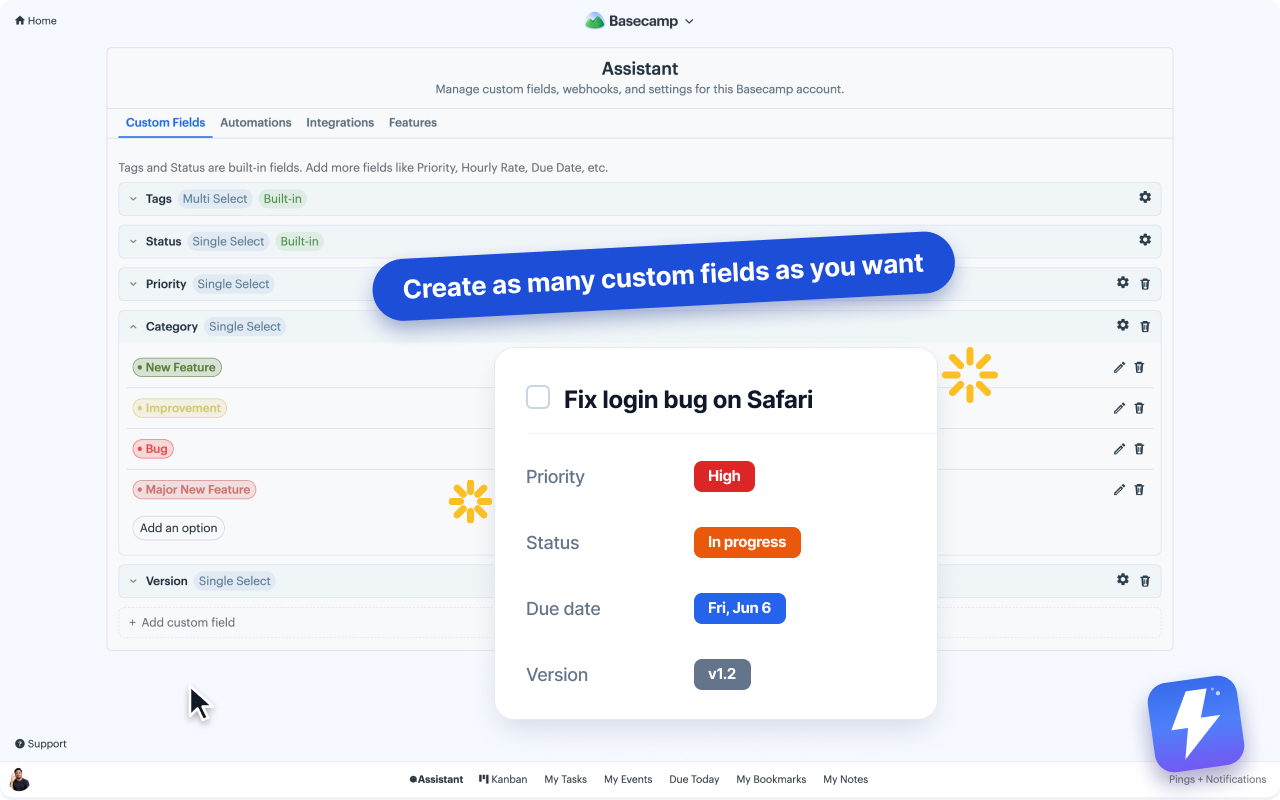
Attach structured data to any to-do, card, or message in Basecamp, and to the documents and files in Docs & Files. Tags and statuses are the two field types everyone starts with, but you can add as many custom fields as you need.
Common field types
- Tags: multi-select, color-coded labels. Use for cross-cutting themes:
bug,urgent,design,client-request. - Status: a single-select workflow state you define (e.g.
To do,In progress,In review,Blocked,Done).
Additional field types
Create your own fields for anything else you want to track:
- Text: free text (e.g. “Client name”)
- Number: numeric values (e.g. “Hourly rate”, “Estimate in hours”)
- Dropdown: single-select from a fixed list (e.g. “Priority: Low / Medium / High”)
- Multi-select: multiple values from a fixed list (e.g. “Platforms: Web, iOS, Android”)
- Date: a single date picker
Adding a value to an item
- Open any to-do, card, or message in Basecamp, or any document or file in Docs & Files.
- Click the field chip injected by Assistant (Tags, Status, or any custom field you’ve defined).
- Pick a value or create a new one.
Managing fields
Admins manage fields from Settings → Custom Fields in the Assistant web app:
- Create new fields, pick a type, define options.
- Scope a field to all projects or specific ones.
- Rename, recolor, merge, or delete existing fields.
- Lock fields so team members can’t create ad-hoc entries.
Turning fields on or off per project
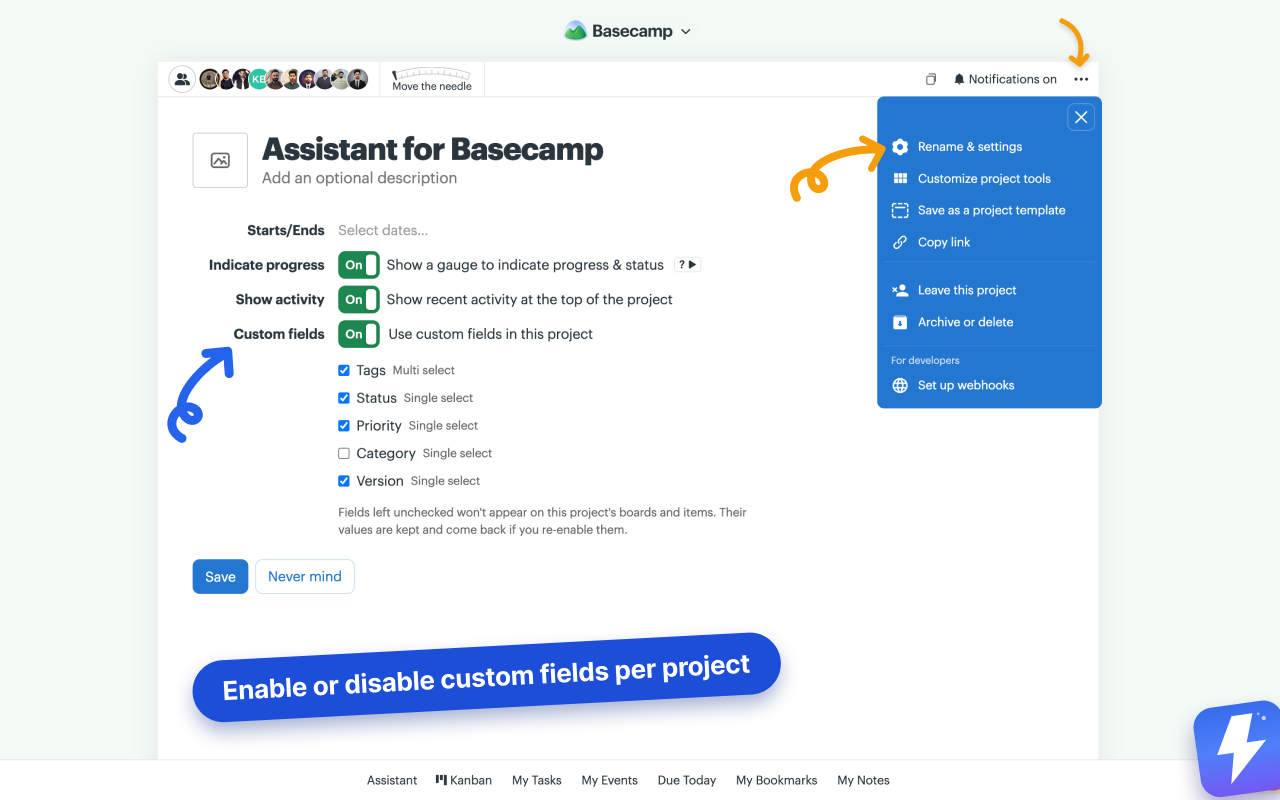
Admins can control which fields appear in a specific project without deleting anything. Open the project’s Rename & settings page in Basecamp:
- Turn Assistant’s fields off for that project to hide all of them, or leave them on and uncheck individual fields you don’t need there.
- Values are kept. If you turn a field back on later, the data you’d already entered is still there.
- Fields you create later default to visible in every project.
Filtering by field value
Every Basecamp to-do list, card table, and the Kanban board picks up a filter bar. Click a tag, status, or custom field value to show only matching items. Filters stack.
Tips
- Keep your status list short (5–7 max). Long lists slow down the Kanban board.
- Use tags for cross-cutting themes and status for workflow stage. Don’t duplicate the same concept in both.
- Use Automations to set field values automatically on triggers.
Can't find what you need? Email us at hello@getassistant.io