Automations
Run a rule automatically when something happens in Basecamp. A rule has a trigger and one or more actions.
Triggers
Automations fire on one of two kinds of trigger:
Basecamp events: any of the webhook events Basecamp emits:
- Todo created, changed, completed, uncompleted, archived, unarchived, or trashed
- Todolist created or changed
- Message created or changed
- Comment created or changed
- Document created or changed
- Upload created or changed
- Schedule entry created or changed
Field changed: a custom field value changes on an item. Optionally scope it to a specific field, or to a specific value on that field.
Actions
- Set field: set a custom field value on the item
- Add option / Remove option: attach or detach a tag (or multi-select option)
- Complete todo / Uncomplete todo
- Post comment: post a comment on the item
- Assign people: assign or unassign team members
- Move card: move a card table card to a different column
Example rules
- Auto-tag new work: When a to-do is created → add tag
urgent. - Close the loop: When a to-do is completed → set status field to
Done. - Route by priority: When custom field
Prioritychanges toHigh→ assign to the team lead.
Creating an automation
- Open Settings → Automations in the Assistant web app.
- Click New automation.
- Pick a trigger (Basecamp event or field change), choose one or more actions.
- Save. The rule runs on all future matching events.
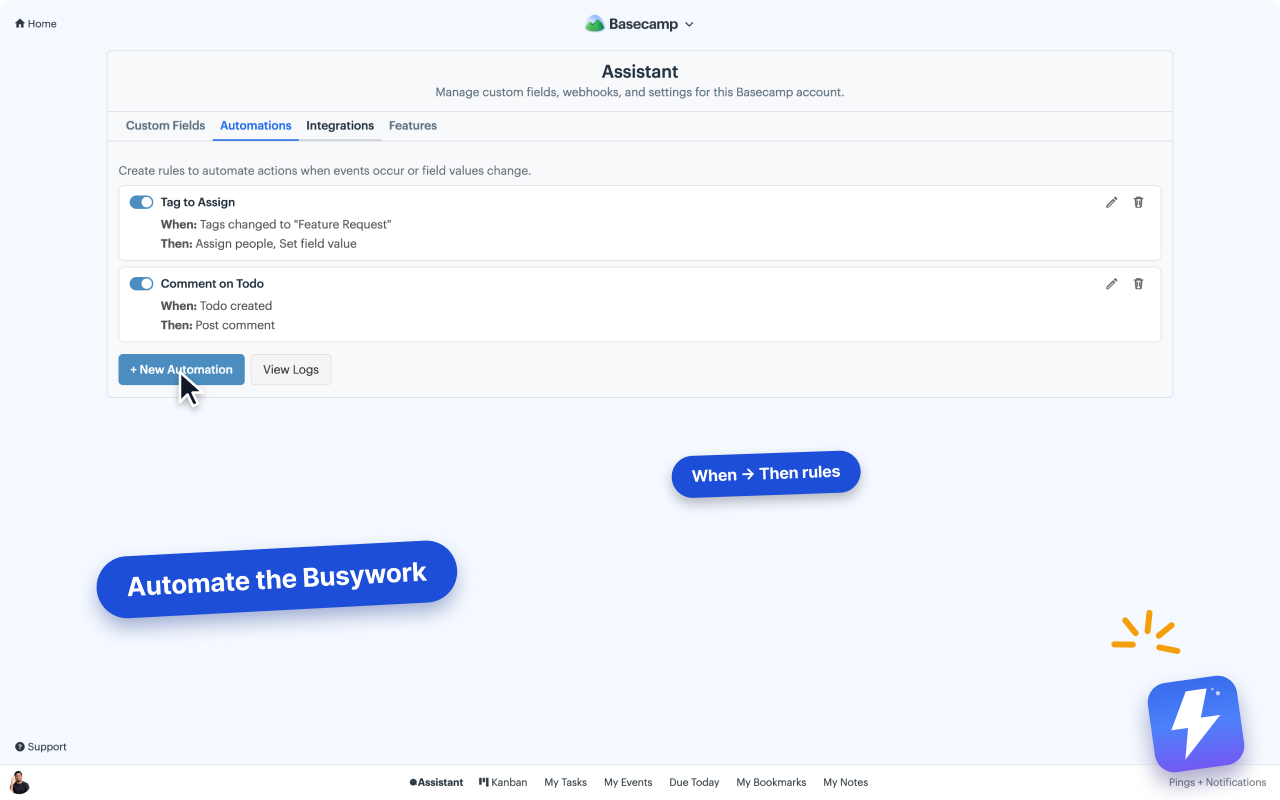
Existing items are not modified retroactively. Automations only fire on events that happen after the rule is saved.
Tips
- Start with one or two rules. Automations are easy to stack until no one remembers why a to-do got tagged.
- Each automation has an Activity log showing when and why it fired.
- Admin-only feature: non-admins can view automations but can’t create or edit.
Can't find what you need? Email us at hello@getassistant.io