How to Add a Kanban Board to Basecamp (Without Leaving Basecamp)
If you run your work in Basecamp, you already know the gap: there’s no Kanban board for your to-dos. You can see lists, and you can check things off, but you can’t watch a task move across columns from To do to In progress to Done. This guide covers what Basecamp offers natively, where it falls short, and how to add a true Kanban board on top of your existing Basecamp projects, without moving your team to a new tool.
Does Basecamp have a Kanban board?
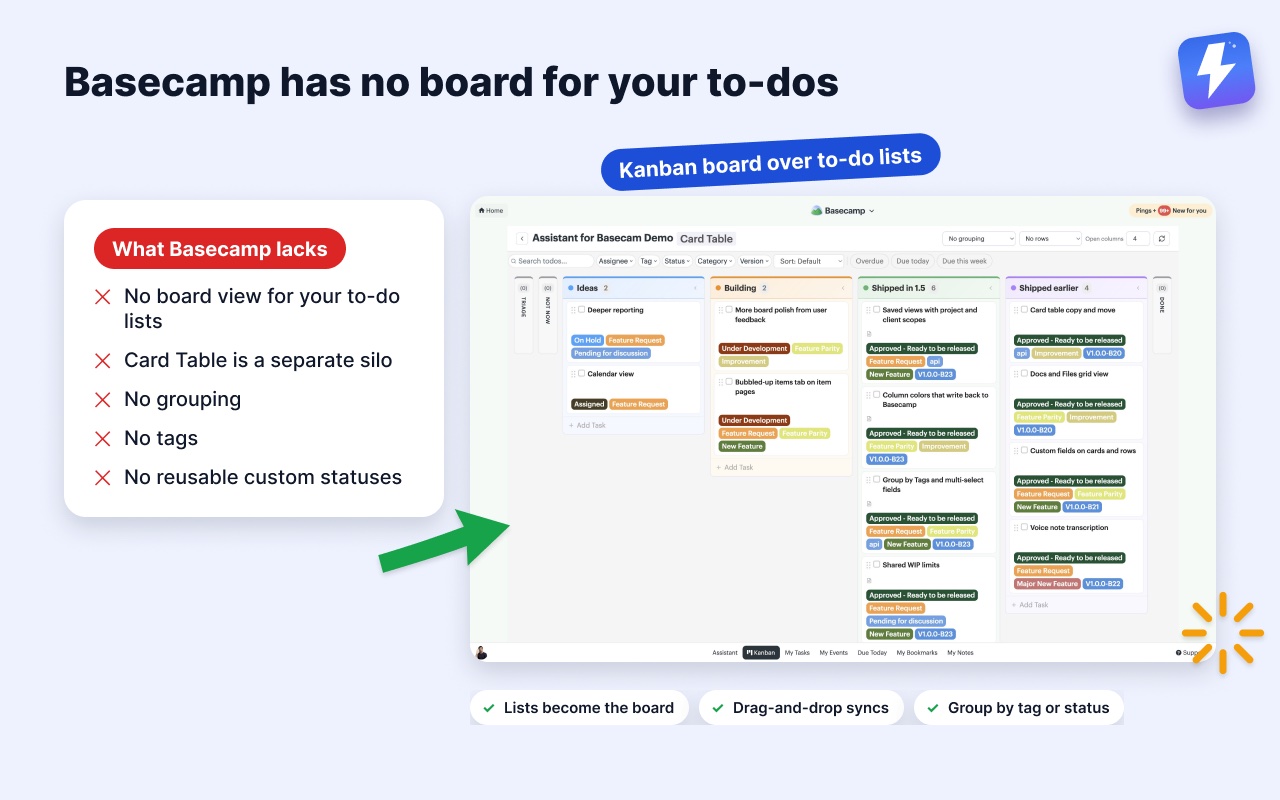
Basecamp has a Card Table, which is its closest native feature to Kanban. A Card Table is a separate tool you add to a project: it gives you columns (like Triage, In progress, and Done) and cards you drag between them.
But there’s an important catch. The Card Table is its own silo. The work most teams actually track lives in to-do lists, and to-do lists have no board view at all. So you end up with two choices, neither great: keep your work in to-dos and lose the board, or move everything into Card Tables and give up the simplicity of to-do lists. There is also no grouping, no custom statuses you can reuse as fields, and no tags. We unpack the full native picture in does Basecamp have a Kanban view?
What a real Kanban board adds
A proper Kanban board for Basecamp should work with your to-dos, not replace them. That means:
- Columns from your real work, your to-do lists become the board, so nothing has to be re-entered.
- Drag-and-drop that syncs back, moving a card updates Basecamp immediately, so people who never open the board still see the change.
- Grouping, rebuild the board by assignee, tag, or status to see who’s working on what, and hide the columns and rows left with no open work.
- Custom statuses, tags, and fields, Under review, Blocked, High priority, colour-coded and reusable across projects.
- Filtering, narrow to “my unfinished bugs” or “blocked design work” in a click.
This is exactly what Assistant for Basecamp adds, a browser extension that layers a Kanban board directly onto the Basecamp projects you already use. The complete feature rundown is on the Kanban board for Basecamp page.
How to add a Kanban board to Basecamp, step by step
You don’t need to migrate anything or change how your team works. The board sits on top of your existing to-do lists.
- Install the extension. Add Assistant for BasecampAssistant for Basecamp from the Chrome Web Store or Firefox Add-ons. It works on Chrome, Firefox, Edge, Brave, and every Chromium browser.
- Connect your Basecamp once. Open the extension and sign in with Basecamp’s OAuth. Anyone on the account can connect it; everyone else on that account gets the board automatically, no per-seat setup. See getting started for the full walkthrough.
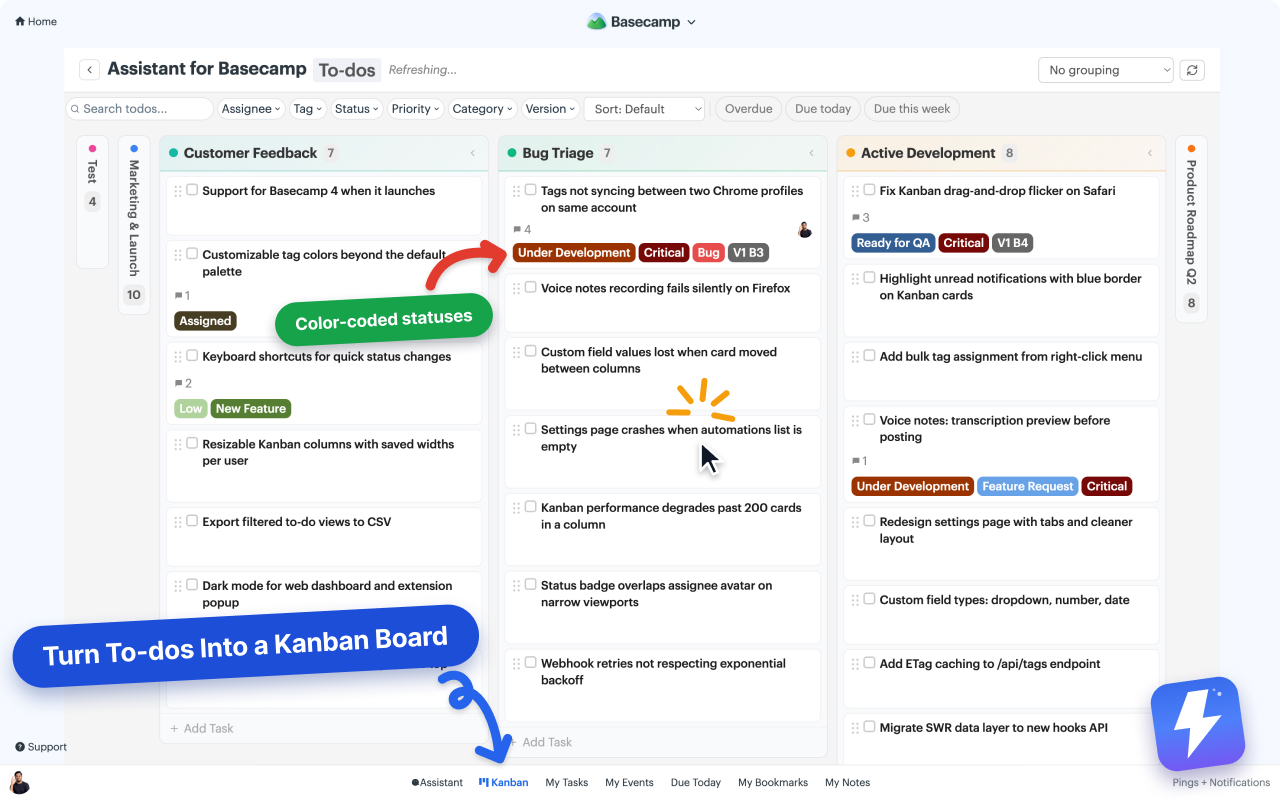
- Open any project and click Kanban. Assistant adds a Kanban entry to the project menu, alongside Basecamp’s built-in tools. Click it and the board loads your to-dos as columns, one column per to-do list.
One list, one project, or the whole account
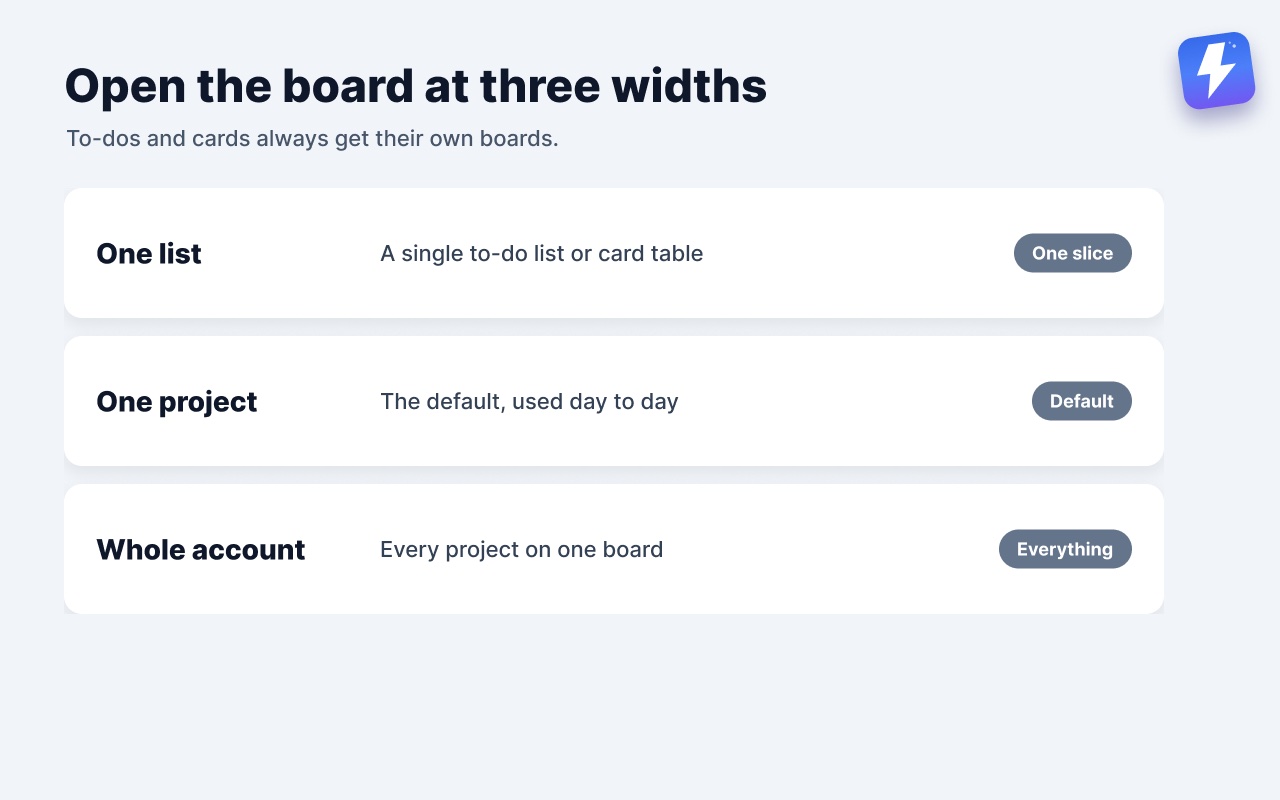
The board opens at whichever width you need. A single to-do list or card table, when you only care about one slice of work. A whole project, which is the default and what most people use day to day. Or every project in your account on one board, when you want to see everything the team has open at once.
To-dos and cards always get their own boards and never share one. They behave differently in Basecamp, and mixing them would make both harder to read.
For the account-wide board you can narrow the set first. Search your projects and clients, pick several projects or several clients, and save that setup as a named view. It’s one or the other, not a mix of the two. Views are per person and stored on our side, so the one you saved at the office is waiting when you open Basecamp at home.
How does grouping work?
Columns on the board come from your project’s to-do lists. The Group by dropdown at the top rebuilds those columns around a field instead:
- No grouping: one column per to-do list.
- Assignee: one column per team member, useful for standups.
- Tag: one column per tag, like Bug or Feature.
- Status: one column per status value, such as In review or Blocked.
Group by a field that holds more than one value and an item lands in every column it belongs to. A to-do tagged Bug, Urgent, and Frontend shows up in all three, so nothing hides under a single label.
Drag a card between columns to move it to another to-do list. When the board is grouped by a field, dragging a card to another column sets that field’s value instead. Every change syncs to Basecamp immediately. For the full reference, see the Kanban board help doc.
Columns across, rows down
Grouping gives you one axis. The pivot view gives you two: pick one field for the columns and another for the rows, and the board becomes a grid. Status across the top with to-do lists down the side is the common setup, because it tells you what state the work is in and which part of the project it sits in at the same time. Rows collapse when you want a section out of the way, and the column headers and row labels stay in place while you scroll.
Does this replace Basecamp or move my data?
No. The extension adds its interface to the Basecamp pages you already use; it never hides or replaces anything. Your messages, to-dos, and files stay in Basecamp, read live through Basecamp’s API rather than copied to us. The board’s own layer, the fields, saved views, and WIP limits, is stored on Assistant’s servers. Teammates who don’t install the extension see Basecamp exactly as before, and if you uninstall, everything goes back to normal.
What does it cost?
Assistant is one flat price, $29/month or $290/year for your whole team, with unlimited seats and every feature. One admin subscribes and everyone on that Basecamp account gets access; there are no per-seat charges. You can try everything free for 7 days, no card needed. Full details are on the pricing page.
The short version
Basecamp’s native Card Table is a separate board that leaves your to-do lists behind. If you want a real Kanban board over the work your team already tracks, with grouping, statuses, tags, and drag-and-drop that syncs back to Basecamp, add Assistant for Basecamp, open any project, and click Kanban. Your existing lists become the board, and nothing about how your team uses Basecamp has to change.
Useful? Tell Google you want more of this.